
Arabic Channels on Smart TV: Setup Guide
A step-by-step guide to getting Arabic channels on a Smart TV in Australia, from checking your TV to sorting channels by country and fixing Arabic text.
If you have a Smart TV, there’s a good chance you can watch Arabic channels on it without buying any extra hardware. All you need is a compatible IPTV player app, a subscription that includes Arabic channels, and about ten minutes. This guide takes you through the whole process, from checking whether your TV is suitable to organising Arabic channels by country and fixing the most common Arabic text problems.
Step 0: Check your TV is suitable
Before you start, run through these quick checks:
- Age: TVs from roughly the last four or five years usually have app stores with IPTV players and receive software updates. Older TVs may have limited stores or apps that no longer get updated.
- App store: open your TV’s app store and search for “IPTV player”. If you see players that mention Xtream Codes or M3U playlists, you’re in business.
- Storage: some TVs have very little free space. If an install fails, remove apps you don’t use.
- Software updates: in the TV’s settings, check for a system update before installing anything. Updates often improve app compatibility and Arabic font support.
If your TV fails these checks, don’t worry — an inexpensive streaming stick or Android TV box will do the job. Our Arabic box TV guide explains what to buy.
Step 1: Get the TV on a good connection
Live Arabic news and football are unforgiving of a patchy connection, so this step matters more than it seems:
- Use Ethernet if you can. A cable from your router to the TV’s network port gives the steadiest picture.
- On Wi-Fi, choose the 5 GHz network. It’s faster and less crowded than 2.4 GHz, though its range is shorter.
- Test the speed from the TV’s network settings or a speed test app if available. Aim for at least 10 Mbps for HD and 25 Mbps for 4K.
Step 2: Choose and install a player app
The player app is what actually shows your channels. A good one for Arabic viewing should:
- support Xtream Codes logins (easiest to enter on a TV remote) and M3U playlists;
- show an on-screen TV guide and support catch-up;
- display Arabic script clearly and handle right-to-left text;
- let you create favourites and set parental controls.
When you order, tell us your TV’s make and age on WhatsApp and we’ll recommend a player that works well on it. Install it from the TV’s app store like any other app.
Step 3: Add your login
- Open the player and choose Add playlist, Add user or Login with Xtream Codes.
- Enter a name, such as “Arabic TV”.
- Type the server address exactly as we sent it, including
http://and any port number, then your username and password. - Save and wait a minute or two while the channels, guide and on-demand library load.
Some TV players display a device code and ask you to add your login on a web page from your phone instead. If so, follow the on-screen instructions — it saves typing on the remote.
Step 4: Find the Arabic channels
Channels are grouped into categories. Look for categories labelled with Arabic, a region (such as Gulf, Levant or Maghreb) or individual countries. Open one, choose a channel and press OK. Most players remember the last category you used, so next time you’ll start where you left off.
Step 5: Set up Arabic display and input
This is where many guides stop, but it’s where Arabic-speaking households often run into small problems:
- Interface language: many players let you switch their menus to Arabic in their own settings, separate from the TV’s system language.
- Channel names showing boxes or question marks: this means the app or TV lacks an Arabic font for that screen. Update the TV’s software and the app first; if it persists, switching the TV’s system language to Arabic briefly and back again sometimes loads the right fonts, or try another player.
- Letters appearing disconnected or reversed: some older apps don’t render Arabic correctly. A current, well-maintained player solves this.
- Searching in Arabic: add an Arabic keyboard in the TV’s input settings, or use the TV’s remote app on your phone to type with your phone’s Arabic keyboard.
Step 6: Organise channels for the family
- Favourites by person: a news list for parents, a series list for grandparents and a cartoons list for the children.
- Favourites by country: handy if different relatives follow channels from different countries.
- Parental controls: lock categories you don’t want children to browse.
- Time zone: set the TV to your state’s time zone with automatic daylight saving, so the guide shows Australian times rather than Middle Eastern ones.
- Catch-up: turn it on in the player settings, then use the guide to rewind series that aired overnight.
Use your phone as a remote and keyboard
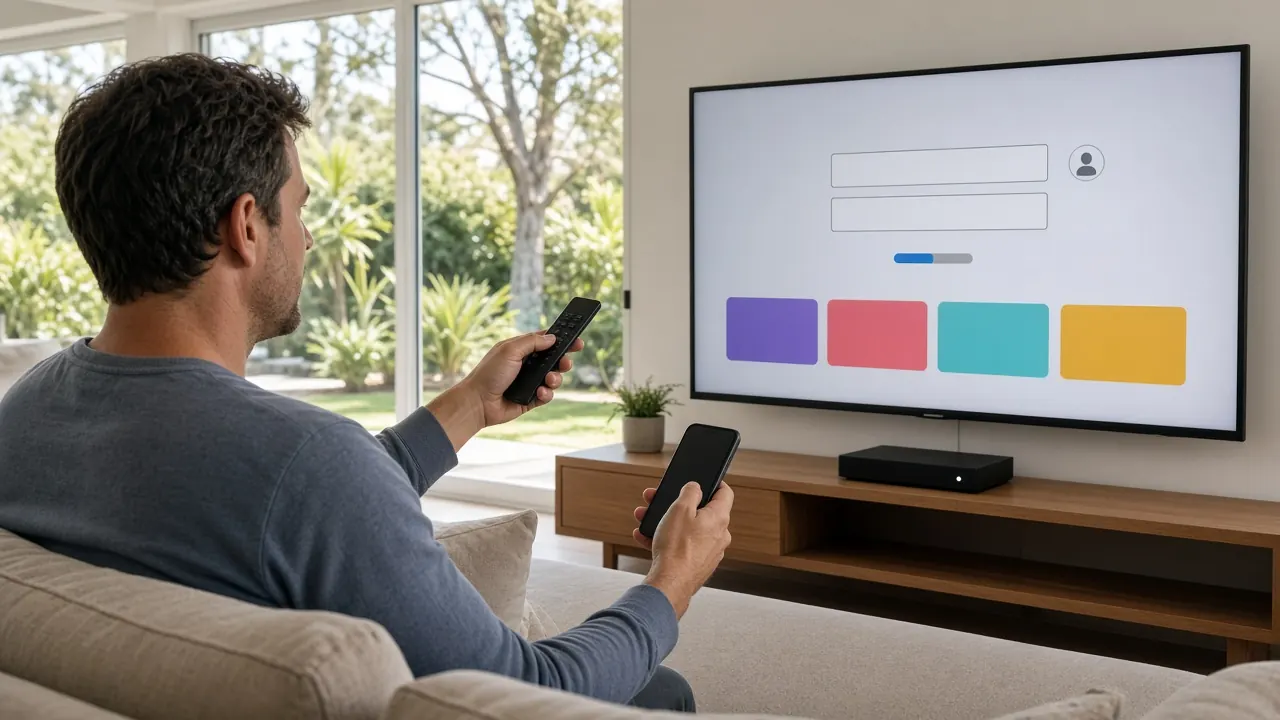
Typing server addresses and searching for Arabic titles with a TV remote is slow. Most Smart TV platforms have a free companion remote app for phones, which lets you type with your phone’s keyboard — including its Arabic keyboard — and paste text you’ve copied from WhatsApp. Install your TV maker’s remote app, connect it to the TV over your home Wi-Fi, and you can paste your login straight into the player. Some IPTV players also offer a web page where you add your login from your phone’s browser, then simply refresh the TV app.
Keep the TV and app up to date
Smart TV apps depend on the TV’s own software. Turn on automatic updates for both the TV system and its apps, so you get fixes for Arabic text rendering, playback and security without thinking about it. If a TV stops receiving updates and the player starts misbehaving, that’s usually the moment to add a box or stick rather than keep fighting the TV.
Get the best picture
- Choose the Full HD or 4K version of a channel where available, and the HD version if your connection struggles.
- Switch the TV to a standard or movie picture mode for drama, and its sport mode for football.
- Turn off heavy motion smoothing if faces look unnatural.
- Close other apps running on the TV to free up memory.
Troubleshooting
| Problem | Likely cause | Fix |
|---|---|---|
| Player not in the app store | TV platform not supported | Ask us for an alternative, or add a stick or box |
| “Invalid login” | Typo, space or capital letter | Re-enter carefully, or add the login from your phone if the app allows |
| Arabic text shows as boxes | Missing font in the app or TV | Update TV software and app; try another player |
| Guide times wrong | Time zone or guide offset | Set your state’s time zone; adjust the guide offset |
| Picture freezes | Weak Wi-Fi or slow TV hardware | Use Ethernet or 5 GHz; close apps; consider a box |
| “Too many connections” | More screens playing than your plan covers | Stop playback on another device or add a device |
When a box is the better choice
Smart TV apps are convenient, but TV hardware is often slower than a dedicated box, and manufacturers stop updating older models after a few years. If your TV feels sluggish, can’t find a good player, or struggles with Arabic text, an Android TV box or stick usually fixes all three for a modest cost. For grandparents who want the simplest remote-and-go experience, a MAG box is another good option.
Ready to watch?
Australia IPTV includes Arabic channels from across the Middle East and North Africa in every plan, and our 24/7 WhatsApp support can help you set up your TV step by step. Explore Arabic IPTV in Australia, read our general guide on how to use IPTV, compare subscription plans, or visit the IPTV Australia homepage.